


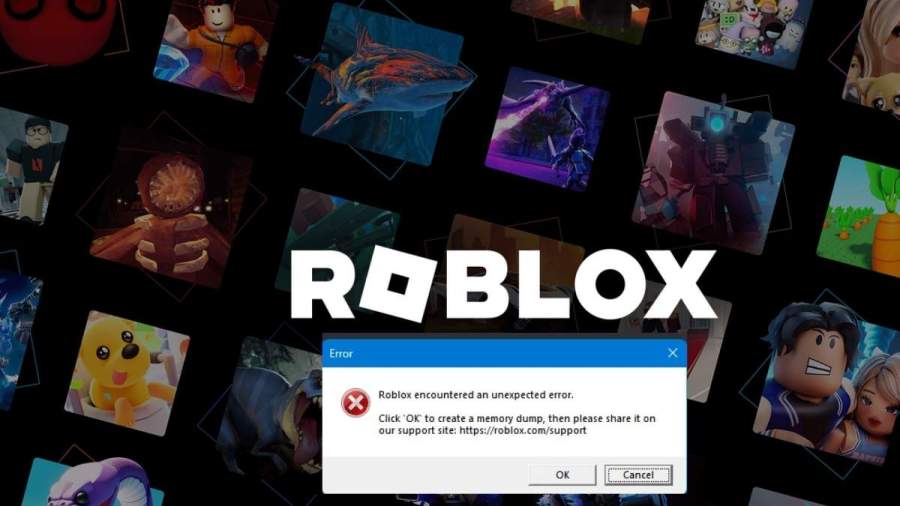
If you're getting the "Roblox Encountered an Unexpected Error" warning message, you're far from being the only one. Roblox players have been reporting this issue en masse over the last couple of months, with the pop-up window prompting you to click OK in order to create and capture a Roblox memory dump. What does this mean, and how to fix it? Here's what we know.
How to Fix Roblox Encountered an Unexpected Error Issue
The issue usually appears when Roblox has trouble interacting properly with your PC, either with Windows or certain parts of your hardware. Players have been sporadically reporting this bug for several months now, usually rendering them completely unable to even start Roblox, let alone play any games on the platform.
The good news is that the developers are well aware of the issue and are working on implementing patches to fix it. In the meantime, on the official Roblox forums, some members of the Roblox staff have suggested several possible workarounds that may resolve the problem before a patch is released. The possible solutions for the “Roblox Encountered an Unexpected Error” issue below were shared by a Roblox developer.
Uninstall and Reinstall Roblox
The first potential solution is the easiest and safest option. You should completely uninstall Roblox, restart your PC, and then reinstall the platform. While not a 100% guaranteed solution, a number of players have reported that this did the trick for them and that they are no longer prompted to create a Roblox Memory Dump.
WARNING: The next few solutions, despite being offered by an official Roblox developer, may be risky for the health of your PC and are not recommended unless you are confident in what you’re doing. Do not try them if you are not prepared to accept certain risks.
Test Third-Party Antivirus Programs
If you are running third-party antivirus programs (other than Windows Defender), a Roblox developer recommends temporarily disabling them to determine whether they are causing the “Roblox Encountered an Unexpected Error” message. Perform this test only if you’re confident that Windows Defender is doing a good job protecting your PC and that you don’t need an extra layer of security.
If you suspect there is a potential threat to your PC, do not disable your third-party antivirus software. On an additional note, a number of players have reported that the issue is specifically related to the Norton 360 antivirus app, so if you’re using it as well, it might be worth trying to uninstall it and see if that fixes the problem.
Turn Off Secure Virtual Machine (SVM)
This falls under advanced troubleshooting, but it may be worth a try, as many people have confirmed that it resolved the issue for them. Again, do this only if you’re confident in what you’re doing and are aware of the potential consequences. In most cases, unless you are using your PC to create virtual machines, emulators, or other similar apps, you likely don’t need this feature. Here’s how to turn it off.
- Restart your PC
- When the PC starts to turn back on, press the Delete key several times until you enter the BIOS.
- Check your motherboard manual to find where in your BIOS the option to disable SVM is located.
- If you have an AMD processor, it’s usually found under the “Advanced” or “Configuration” tab, then “CPU Configuration,” and finally the “SVM Mode” setting.
- Once you're done, save BIOS changes and restart the PC.
NOTE: Many players who experience this issue report having an AMD processor, so the issue may be related to AMD.
RELATED: Solo Hunters Abilities Tier List
Turn Off Memory Integrity
Memory Integrity is one of the newer Windows features designed to protect your PC at a core (kernel) level. While it plays a critical role in system security, it has also been reported to significantly hamper game performance and even prevent some games from working altogether.
Disabling it may leave your PC more vulnerable, but for the vast majority of users, this is unlikely to be an issue, as it is primarily related to more advanced attacks that do not affect everyday internet usage. Here's how to do it:
WARNING: Despite being officially suggested by some Roblox developers and despite working as a solution for many players, it is generally recommended not to turn it off. While it may not cause issues for most users, it does expose your system to unnecessary risks. Proceed at your own risk.
- From the Desktop, search Windows Security and open it.
- Click on Device Security.
- Select Core Isolation and turn it off.
- Restart your PC.
What is Roblox Memory Dump?
When the “Roblox Encountered an Unexpected Error” warning message appears, the client will prompt you to click OK in order to create a Roblox memory dump. This is harmless and simply serves as a report you can send to Roblox Support so they can analyze it and determine the cause of the issue.
When you click "Create Roblox Memory Dump," it will create this report and save it under C:\Users(your username)\AppData\Local\Temp, so just head there to find it and send it to Roblox devs to analyze it. This will help them understand what causes the problem so they can resolve it.
Roblox Encountered an Unexpected Error FAQ
Some players report that it has to do with Norton antivirus, others that Windows security measures are preventing the game from starting, while for some, it has to do with AMD processors.
It is a report that Windows creates when a program fails to start or crashes, helping developers understand what caused the issue and how to fix it.
Yes, it's safe, but share it only with official Roblox support or trusted people.
Yes, Roblox developers are working on fixing it, though it may take more than a few updates to fully resolve the issue.
And with that, our guide on how to fix the Roblox Encountered an Unexpected Error issue is completed. If we stumble upon more solutions, we will make sure to add them to our list. In the meantime, be sure to check out our Roblox hub for more guides, codes, and news about everything Roblox.


