


If you’ve been eagerly waiting for the Code Vein II release but are facing the dreaded ‘DirectX 12 is not supported by your system’ when running the game, you’re not alone. The error is causing headaches for plenty of players trying to re-enter the Revenants. So, here are a few fixes that you can try to get rid of the Code Vein II DirectX 12 error.
How to Fix DirectX 12 is Not Supported on Your System
Code Vein II is an Unreal Engine 5 game, so launch-day errors were always expected. While some errors will need hotfixes, others, like the DirectX 12 errors, are easier to fix. Here are 6 fixes you can try to get rid of the DirecX 12 is not supported on your system error for Code Vein II and get into the game.
Restart & Update Your PC
If you didn’t restart your PC after installing Code Vein II, now’s the time to do it. Completely close Code Vein II and the client you’re running it through (Steam or Epic) and restart your PC. Make sure to choose the Restart and Update option to install any pending Windows updates.
Once your PC reboots, run Code Vein II as Administrator.
Update your DirectX
You can be facing this error because you’re running an outdated version of DirectX. Make sure you have the latest DirectX version installed on your PC. To check your DirectX version, press Windows + R and run the ‘dxdiag’ command. This will open the DirectX Diagnostic Tool. In the System tab, you’ll see the DirectX Version at the bottom.
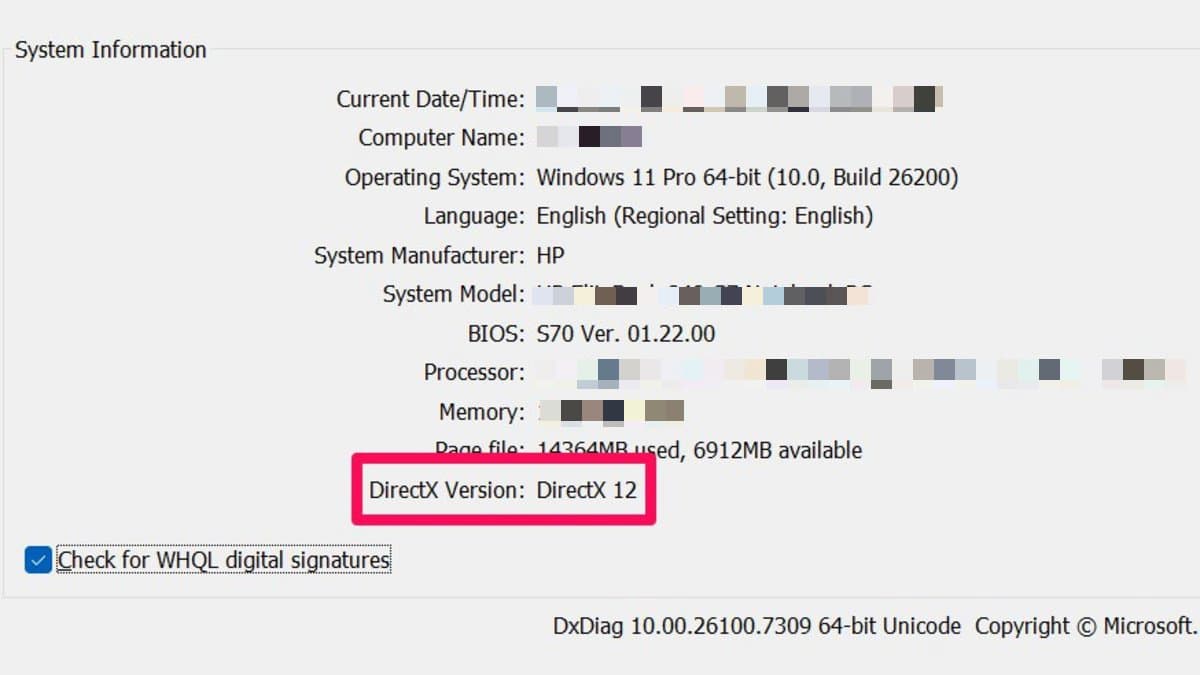
If it says DirectX 12 in front of it, you’re good to go. But if you see a different version, you’ll have to download and install the latest one. For that, you’ll have to download and install the DirectX End-User Runtime Web Installer. Once it installs, run the program and follow the instructions to download and install the latest DirectX version on your PC for free.
With the latest DirectX 12 version installed, try running the game again.
Update your Graphics Driver
If your graphics drivers are not up to date, Code Vein II will have trouble syncing with DirectX and give you the error message. To check for Graphics Update, follow the steps below:
- Go to Windows Search and type in Device Manager.
- Open Device Manager and find Display Adapters in the list.
- Right-click on the main graphics card of your system and click on Update Driver.
- Click on Search automatically for drivers, and Windows will automatically find and install any pending updates.
You can also manually check and install any pending updates using the following links:
- For Nvidia Graphics: https://www.nvidia.com/en-eu/software/nvidia-app/
- For AMD Graphics: https://www.amd.com/en/support/download/drivers.html
- For Intel Graphics: https://www.intel.com/content/www/us/en/support/detect.html
If you do end up installing any updates, restart your PC and then try running Code Vein II again.
Verify Integrity of Game Files
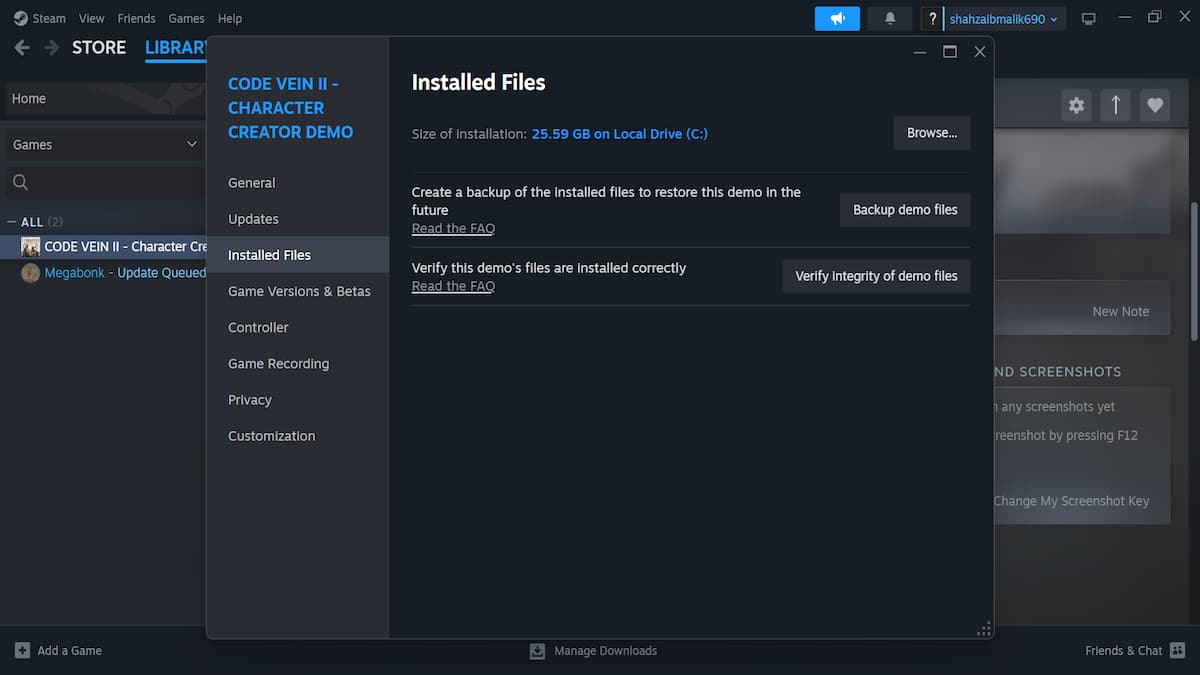
A faulty installation could also be causing this error. So, if none of the above fixes worked, try verifying the integrity of game files. Here’s how to do that on Steam and Epic.
Epic Games Launcher
- Open your Epic Games Launcher.
- Go to the Library and locate Code Vein II.
- Click on the three dots next to the title and click on Manage from the pop-up menu.
- Scroll down a little to find and click on Verify.
The verification process can take a few minutes. Once it is complete, exit Epic Games Launcher, relaunch it, and try running Code Vein II again.
Steam Launcher
- Open your Steam Launcher
- Go to the Library and right-click on Code Vein II.
- Click on Properties.
- Click on Installed Files.
- Click on Verify integrity of game files.
Once the process is complete, try running Code Vein II again, and hopefully you won’t have to face the DirectX 12 is not supported on your system error again.
Modify Launch Options
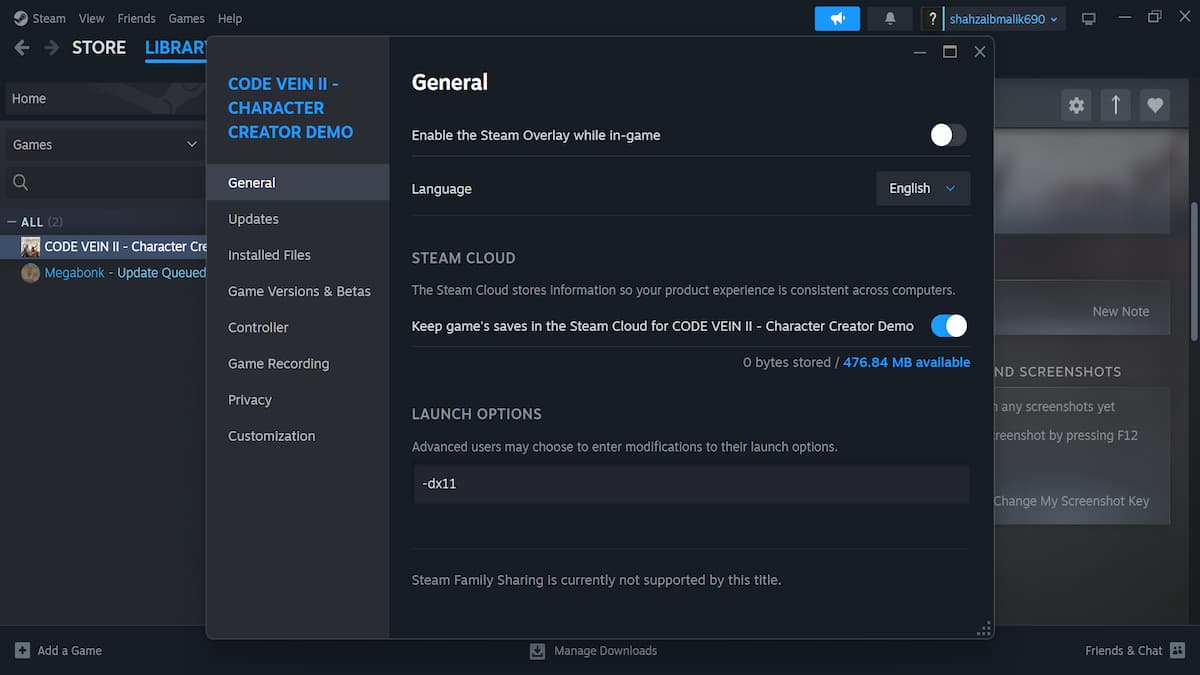
As a last resort, you can try running Code Vein II with alternative APIs (DirectX 11 or Vulkan). This will take DirectX 12 out of the equation and resolve the error. Here’s how to do it for Epic Games Launcher and Steam Launcher:
Epic Games Launcher
- Open your Epic Games Launcher.
- Go to the Library and locate Code Vein II.
- Click on the three dots next to the title and click on Manage from the pop-up menu.
- Scroll down a little to find Launch Options and toggle them on.
- Put -d3d11 or -vulkan in the blank space and try to run the game again.
Steam Launcher
- Open your Steam Launcher
- Go to the Library and right-click on Code Vein II.
- Click on Properties.
- Click on General.
- Put -dx11, -d3d11, or -vulkan in the blank space and try to run the game again.
If you still face the same issue after trying these fixes, the problem could be with your hardware setup. Read on to see the minimum requirements to run Code Vein II and see if your PC meets the requirements.
Code Vein II System Requirements
| Minimum | Recommended |
|---|---|
| OS: Windows 11 CPU: Intel Core i5-9600K /AMD Ryzen 5 3600 RAM: 16 GB GPU: Nvidia GeForce GTX 1660 Super / AMD Radeon RX 5700 / Intel Arc B570 DirectX: Version 12 Storage: 70 GB available space Note: Estimated performance: 1080p/30fps with graphics settings at "Low". Requires a 64-bit processor and operating system | OS: Windows 11 CPU: Intel Core i7-12700KF / AMD Ryzen 7 7800X3D RAM: 16 GB RAM GPU: Nvidia GeForce RTX 3080 / AMD Radeon RX 6800 DirectX: Version 12 Storage: 70 GB available space Note: Estimated performance: SSD is recommended. 1080p/60fps with graphics settings at "High". Requires a 64-bit processor and operating system |
If you match the system requirements, have the latest DirectX version that’s supported by your system, and your graphics drivers are up-to-date, you’ll have to wait for Bandai Namco to push a hotfix for this issue.
You can also use the Bandai Namco Support Page to get in touch with the support team to find a solution for this problem.


