


The Skill Builder in The Strongest Battlegrounds is a new feature that lets you create custom skills by combining existing moves through a timeline-based editor. Access it through the Settings menu, then configure your skill's name, cooldown, animations, effects, trails, and props across the timeline. Use the Gauntlet Validator before saving to catch issues like missing hitboxes before your move set is finalized.
The Skill Builder is a private server tool that lets you build completely custom skills by chaining existing ones together and modifying their animations and effects. You can do tons of customization, like move naming, cooldown configuration, visual effects, trails, props, and conditional move variants. So, here's a complete guide on how you can use it correctly.
How Do You Access the Skill Builder in The Strongest Battlegrounds?
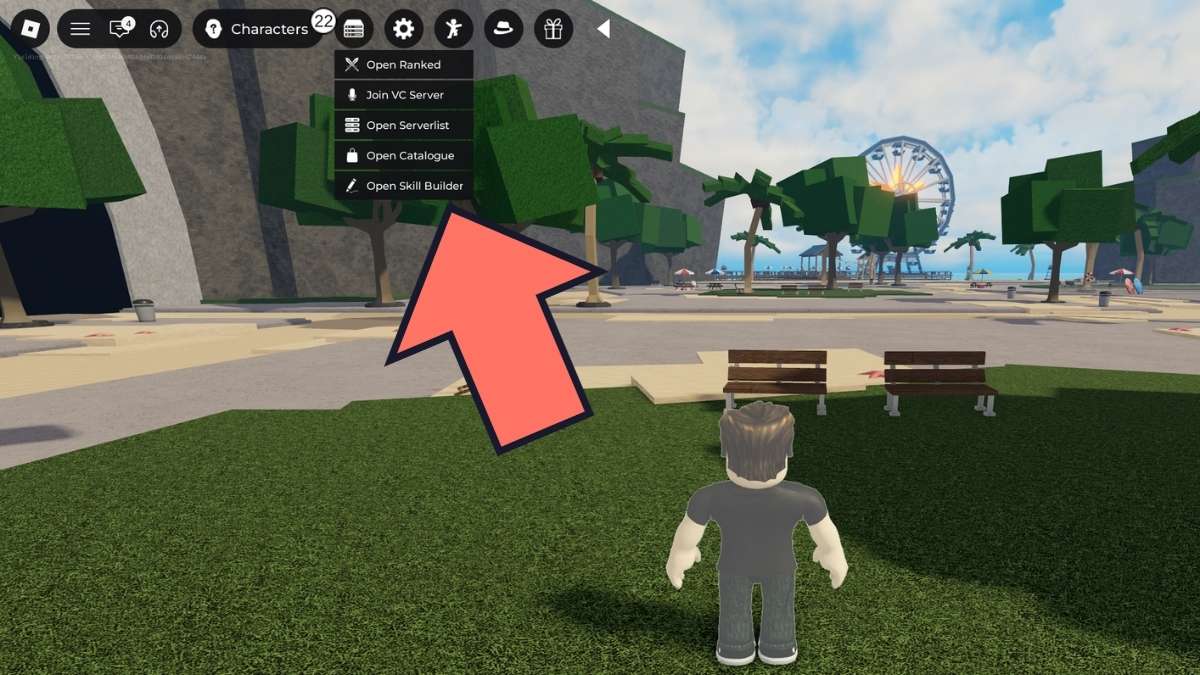
To open the Skill Builder, expand the Settings tool on your screen and navigate to Settings to enable it. Before building anything, head into Keybind Settings and adjust the UI scale first. The builder interface can appear very small by default, and resizing it under the UI section makes every panel significantly easier to work with.
While in Keybind Settings, also locate the Gauntlet Validator option. Disable it and re-enable it to ensure it displays correctly. This tool will save you time later by catching errors in your move set before you save.
How Do You Configure Your Skill in the Skill Builder?
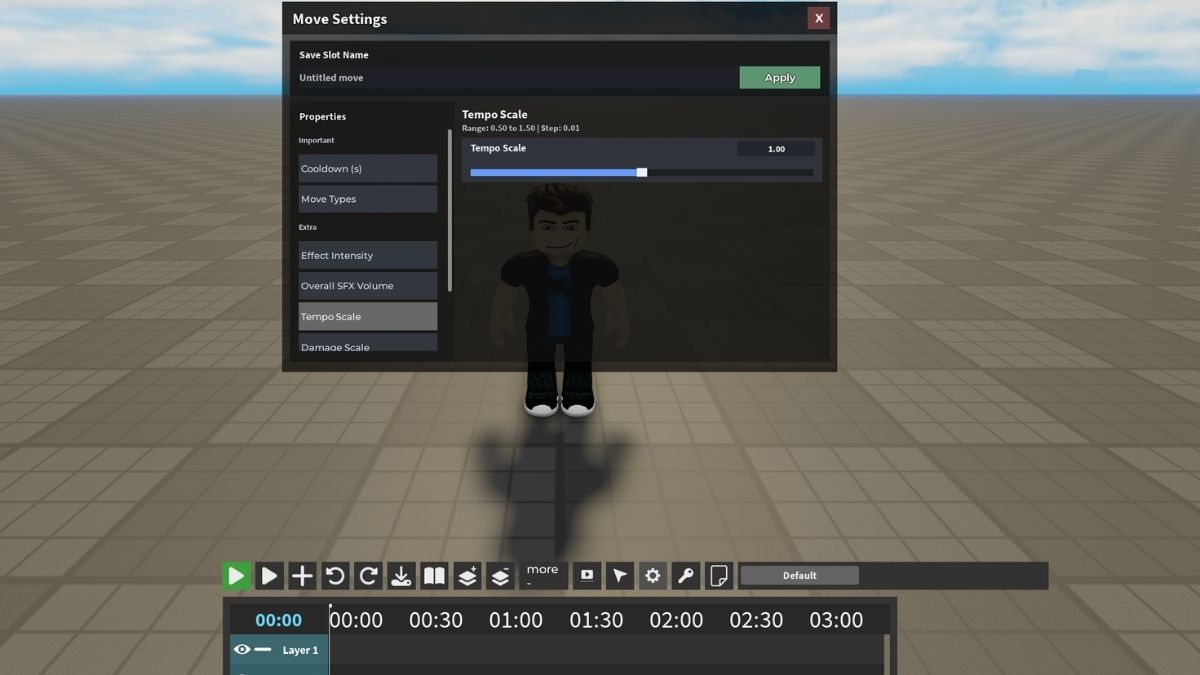
The Move Settings panel is where you define the basic identity of your skill. Every move set should be named and assigned a cooldown here before you move into the timeline. Both fields are required for a properly functioning skill.
| Setting | What It Does |
|---|---|
| Skill Name | Sets the display name of your custom skill |
| Skill Cooldown | Sets how long the cooldown lasts after the skill is used |
How Does the Timeline Work in the Skill Builder?
The Timeline is a sequence of nodes, each one representing a step in your skill's execution order. Each node is configured individually, letting you chain different moves and animations into a single flowing skill. You build the full sequence here before adding visual effects or saving.
| Setting | What It Does |
|---|---|
| Skill | Selects which existing skill plays during that node |
| Animation | Selects the animation that plays during that node |
| Attack Speed | Slider that controls the attack speed for that node |
| Animation Speed | Slider that controls the animation playback speed for that node |
What Are Move Variants and How Do You Use Them?
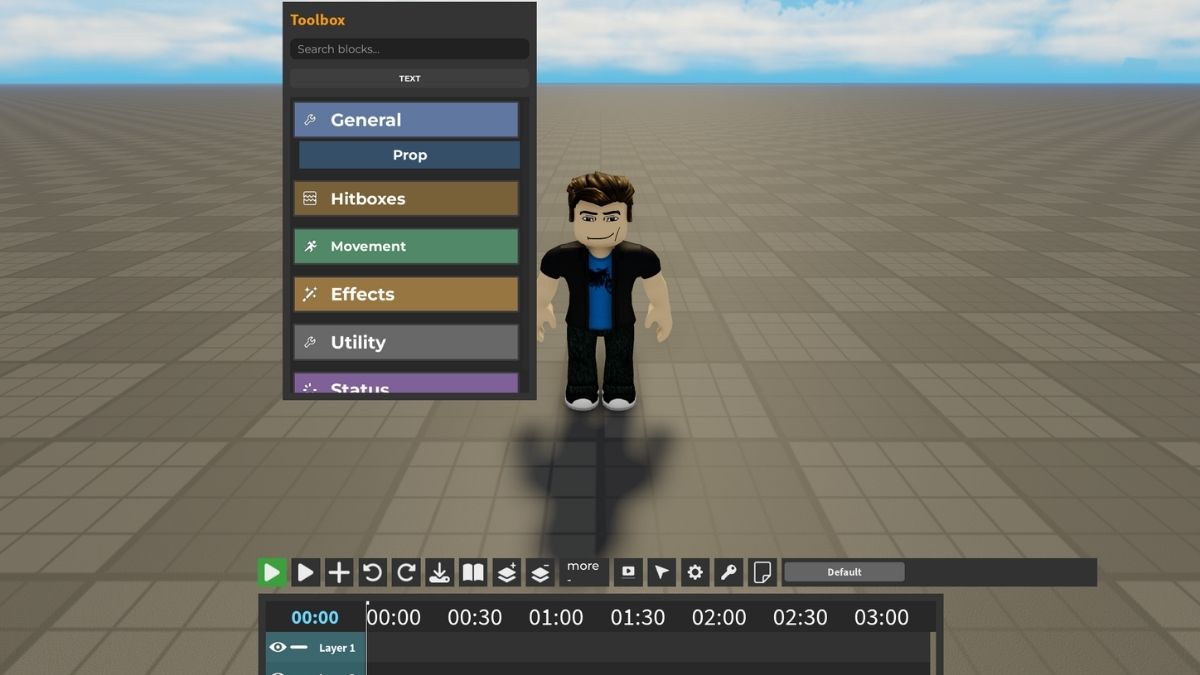
Move variants let you give a single skill different behaviors depending on specific conditions at the time it is used. Each variant has its own independent timeline, meaning you can build and edit them separately without affecting the others. Variants can be triggered by the following conditions:
- Awakening bar: Usage and cost
- User HP: Health thresholds
- User state: Airborne or grounded
- Movement direction: Back, forward, left, or right
How Do You Add Effects to Your Skill in the Skill Builder?
The Extra panel controls the audio and visual properties of your move. These settings apply across the full skill rather than to individual timeline nodes. Adjust them after your timeline is set to fine-tune how the move looks and feels.
| Setting | What It Does |
|---|---|
| Effect Intensity | Controls how loud the move's sound effects are |
| Overall FX Volume | Controls the overall audio volume of the skill |
| Tempo | Controls the speed of the move. Lower is slower, higher is faster |
| Damage Scale | Adjusts the damage output of the skill |
| Knockback Scale | Adjusts the knockback force applied to enemies |
| Color Effects | Let's you set a custom color for the skill's visual effects |
How Do You Use Presets in the Skill Builder?
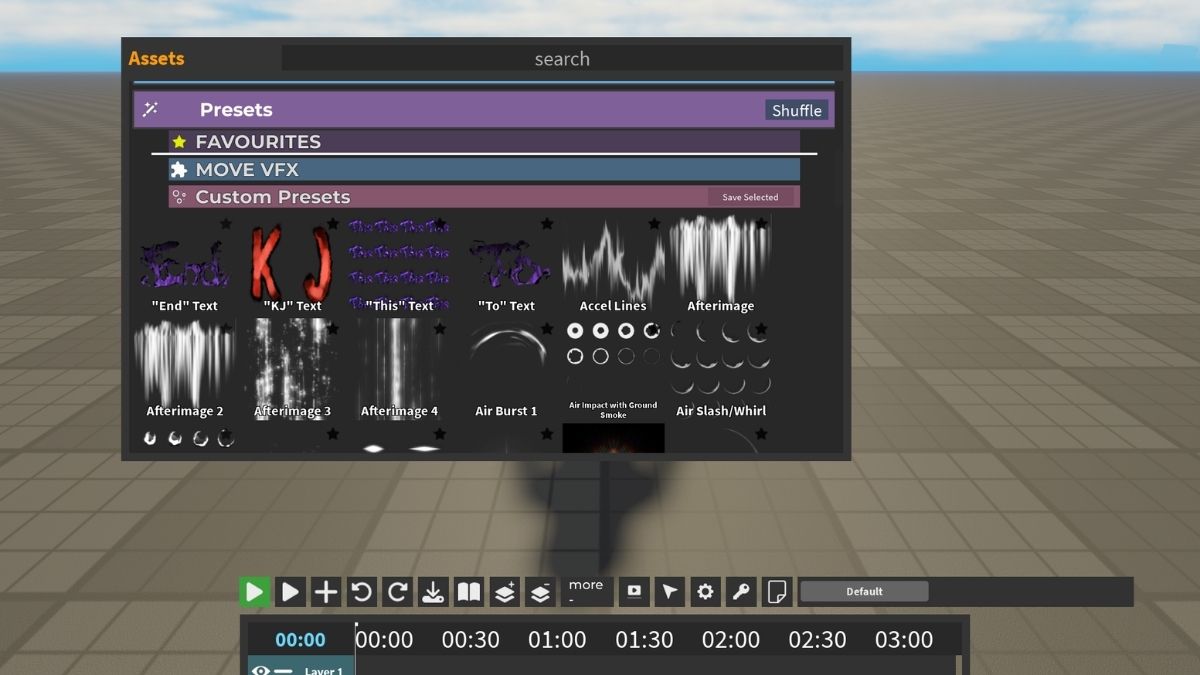
Presets are pre-made assets built into the game that you can load directly into your skill without building from scratch. To access them, go to Load and then go to the Presets section. Available preset types include move effects and meshes, all of which can be clicked and dragged directly into your timeline.
NOTE: Once placed, each preset can be edited. You can adjust its centering, size, color, and other properties to fit your move set.
How Do You Add a Trail to Your Move in the Skill Builder?
Trails create a visual streak effect that follows a body part during your move's execution. To add one, select the Trail option in the builder, then set its attachment point under Position, go to Humanoid Part, for example, the Right Arm. Once attached, the trail will follow that part whenever the move plays. You can customize the trail further with the following options:
- Duration: How long the trail lingers after the move
- Shape/Size: How wide or large the trail appears
- Color: The trail's visual color
How Do You Add Props to Your Move in the Skill Builder?
Props are physical objects, such as a katana, that appear during your move's animation. When you spawn a prop, it attaches to a body part by default based on the prop type. To change where it attaches, go into the prop's settings and select a different body part, then manually reposition it until it sits correctly.
Props can be attached to any body part, including the head, right arm, left arm, or hands. If the positioning is off after attaching, drag the prop manually until it aligns with the intended location.
How Do You Validate and Save Your Move in the Skill Builder?
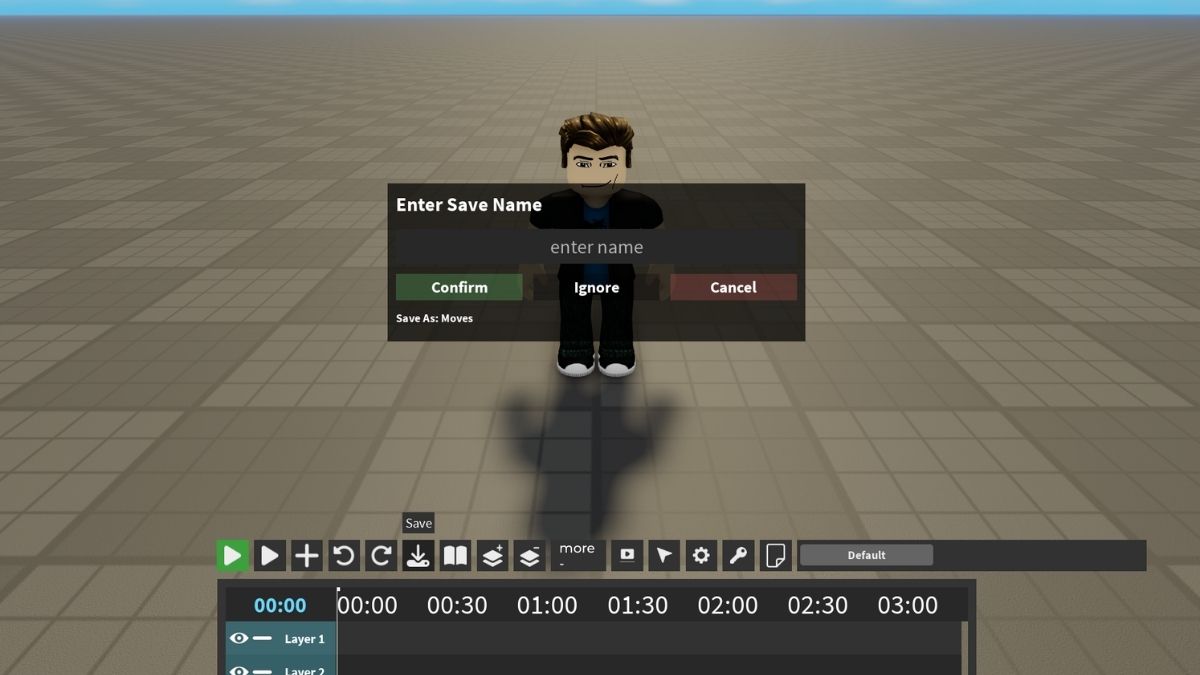
Before saving, use the Gauntlet Validator to check your move set for errors. Click Find Issues, and the validator will flag any problems, such as a hitbox that deals no damage or a node missing a hitbox entirely. Each flagged issue can be fixed directly from the validator without manually hunting through your timeline.
Once your move is error-free:
- Go to Save
- Enter a name for your move set
- Click Confirm
After saving, exit the builder and return to the Create menu. Your saved move set will appear in the list, where you can equip it and test it on the training dummies.
Frequently Asked Questions (FAQs)
No. The Skill Builder does not currently function correctly on PlayStation or Xbox. It is primarily designed for PC players. Console players should check for future updates, as this is a known limitation of the current version.
Your move will save with those errors present, which can cause it to malfunction in use. For example, a skill with no hitbox will play its animation but deal no damage. Always run the Gauntlet Validator and click Find Issues before saving to catch and fix problems like missing hitboxes or misconfigured damage values.
For more on The Strongest Battlegrounds, check out The Strongest Battlegrounds Cosmic Update Guide or 150 The Strongest Battlegrounds Kill Sound IDs on Pro Game Guides!


