


The quickest fix for Connection Failed in How to Fish is to fully restart Steam, then relaunch the game. If that fails, check that your game is fully updated, verify the game files through Steam, and confirm Steam is not in Offline Mode. Disable any VPN or third-party antivirus, allow the game through Windows Firewall, and flush your DNS via Command Prompt. If hosting a session still fails, have a friend create the lobby and join theirs instead.
How to Fish is a popular co-op fishing game that you can play with your friends. But some of you might have encountered a Connection Failed error in the top-right corner of the main menu, a black screen when joining lobbies, or an unresponsive Create Session button that prevents you from playing co-op at all. So, to help you solve these issues, this guide covers every known fix for connection error in How To Fish.
How Do You Fix the Connection Failed Error in How to Fish?
If you're facing the Connection Failed Error in How To Fish, below we have mentioned all the possible fixes for this error to solve this issue with ease:
Restart Steam Fully
The most reliable first step. Right-click the Steam icon in your system tray and select Exit, do not just close the window. Wait a few seconds, then reopen Steam and relaunch How to Fish. Many connection errors resolve after a full Steam restart because it forces a fresh connection to Steam's servers and clears any stalled session processes.
Check for a Game Update
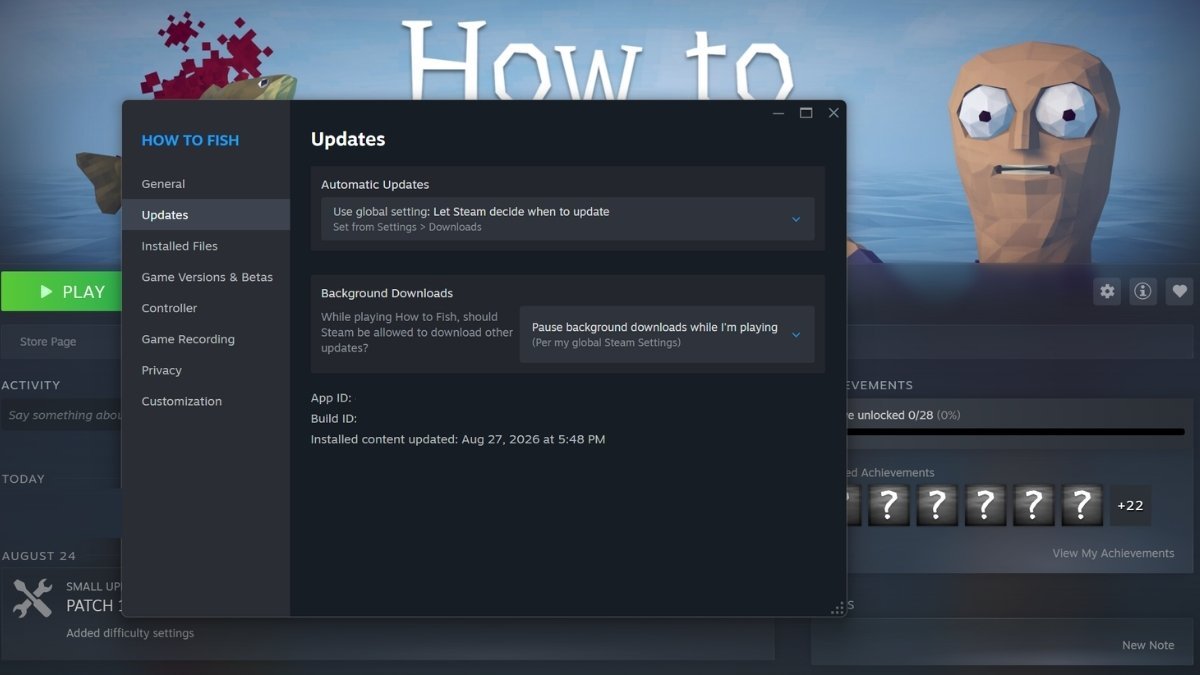
If even one player in a session is on a different game version, the lobby might fail entirely. In your Steam Library, right-click How to Fish, select Properties, then open the Updates tab and enable auto-update. Install any pending update and restart before trying to connect again.
Verify the Game Files
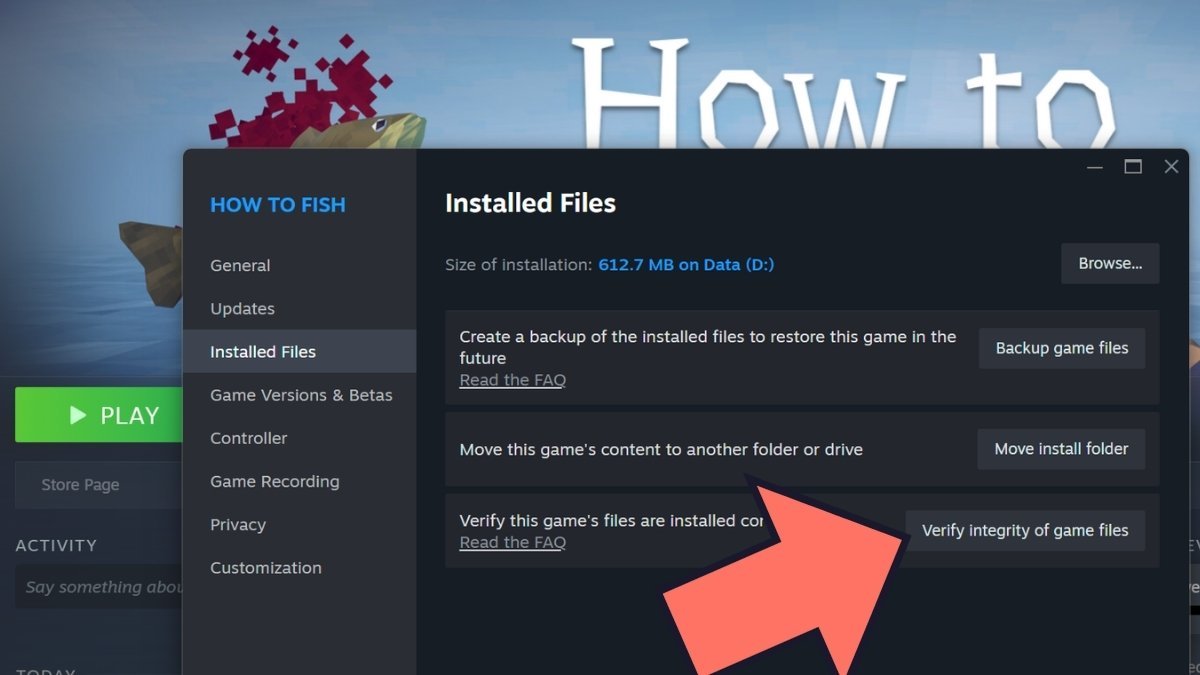
Corrupt or missing files can cause connection errors that look like network problems. In your Steam Library, right-click How to Fish, open Properties, navigate to the Installed Files tab, and click Verify integrity of game files. Restart your PC after the check completes.
Create a Fresh Lobby
Lobbies that have been running for several hours can develop synchronization issues that cause joining to black-screen or fail entirely. If you or a friend have been in the same session for a long time, have everyone leave and create a brand-new lobby. This resolves many black screen and join failures without requiring any other changes.
Switch the Host
If one player cannot create a session, have a different player host the lobby and invite everyone else. This immediately tells you whether the issue is specific to one person's setup or affects the whole group. If joining works fine but hosting fails, the problem is on the host's side and the steps below will help.
Disable Your VPN or Proxy
VPNs and proxies frequently interfere with Steam's networking and block session creation. If any player in the lobby is using a VPN or proxy, disable it completely before launching the game. Also ensure no one in the lobby is using one, even a single player with an active VPN can cause connection failures for the entire group.
Disable Third-Party Antivirus Temporarily
Third-party antivirus programs (Avast, Norton, Bitdefender, McAfee, etc.) can block Steam's networking tools and prevent lobbies from forming. Temporarily disable your antivirus, then test How to Fish. If the connection works with antivirus disabled, add the game executable to your antivirus exclusions rather than leaving it disabled permanently.
Allow How to Fish Through Windows Firewall
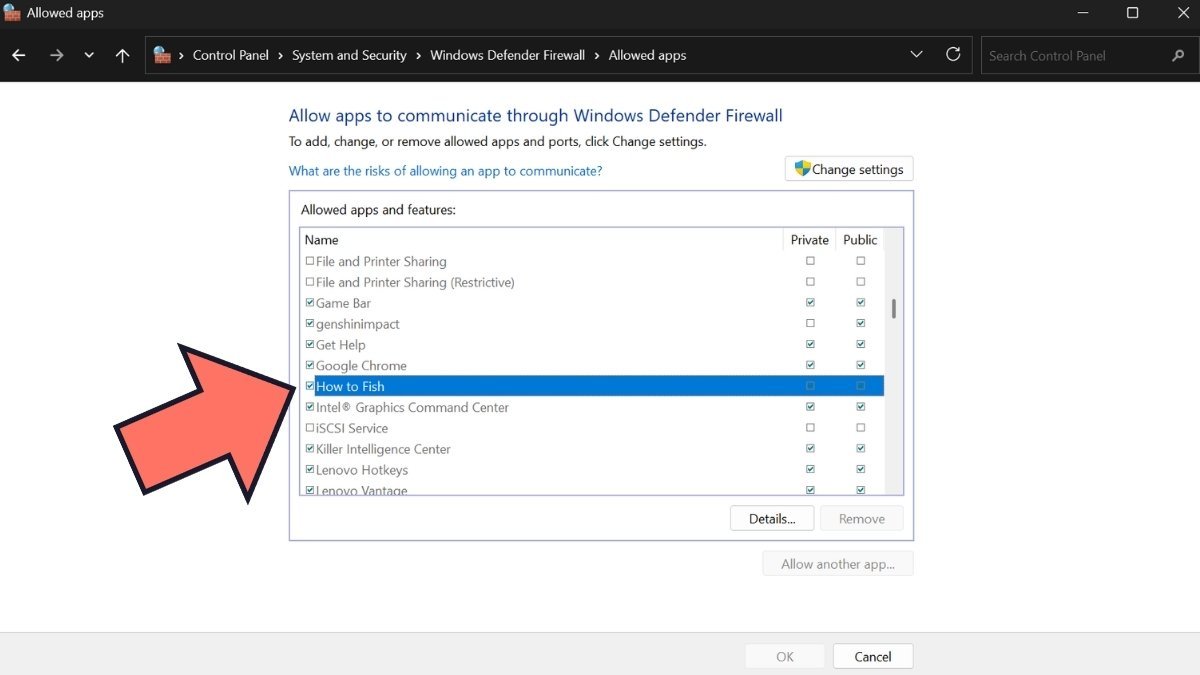
Sometimes the Windows Firewall can block the network connections from How To Fish. Here's the steps you can follow to allow it through:
Step 1: Open the Start Menu and search for Windows Defender Firewall
Step 2: Click Allow an app or feature through Windows Defender Firewall
Step 3: Click Change Settings, then search the list for Steam and How to Fish. Both should be checked under Private and Public
Step 4: If How to Fish is not in the list, click Allow another app, browse to the game's installation folder, select the .exe file, and click Add
Step 5: Ensure both Private and Public boxes are ticked for both entries, then click OK
Restart Your Router (Wi-Fi Only)
One of the more difficult solutions would be to power your router off completely, wait 30 seconds, then power it back on. Once reconnected, relaunch Steam and try How to Fish again. If Wi-Fi is unreliable, try switching to a wired Ethernet connection or using a mobile hotspot to test whether the issue is specific to your current network.
Run Network Reset Commands
Open the Start Menu, type cmd, right-click Command Prompt, and select Run as administrator. Run the following commands one at a time, pressing Enter after each:
- ipconfig /release
- ipconfig /renew
- ipconfig /flushdns
- netsh winsock reset
- netsh int ip reset
Close Command Prompt and restart your PC. These commands clear your DNS cache, release and renew your IP address, and reset Windows network socket configuration. All of which can resolve persistent connection failures.
Run How to Fish as Administrator
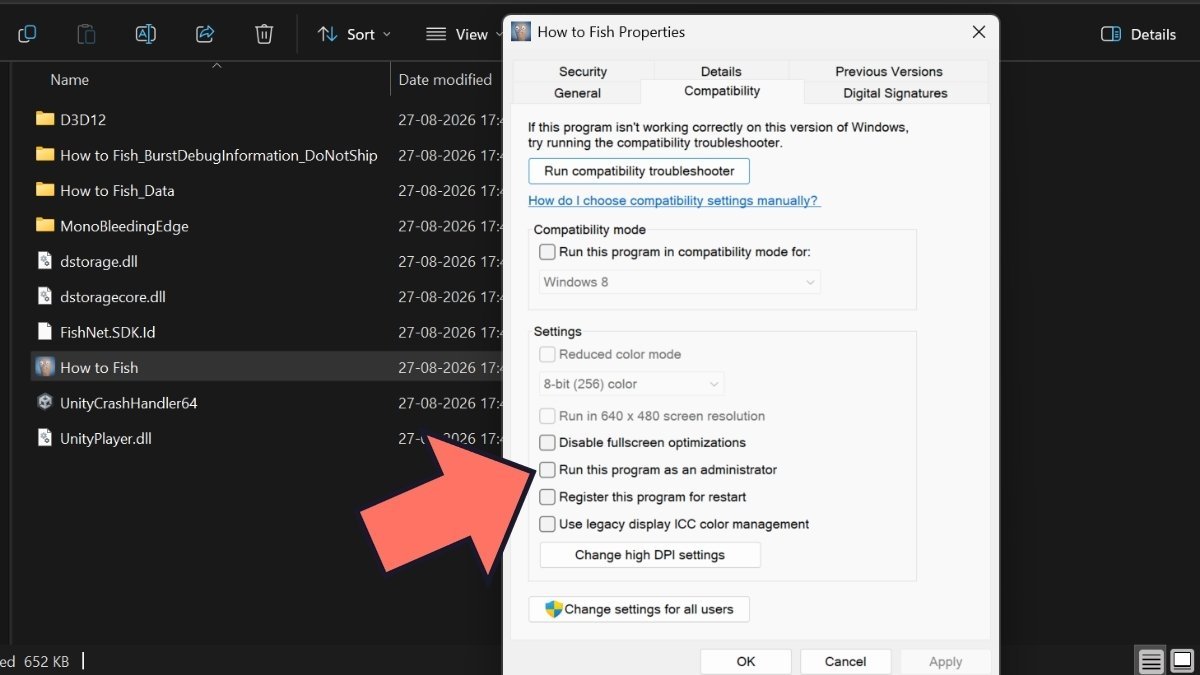
In Steam, right-click How to Fish, select Manage -> Browse Local Files. Find the game executable, right-click it, go to Properties, open the Compatibility tab, and check Run this program as an administrator. Click Apply and OK, then relaunch from Steam.
Reset Windows Network Settings (Last Resort)
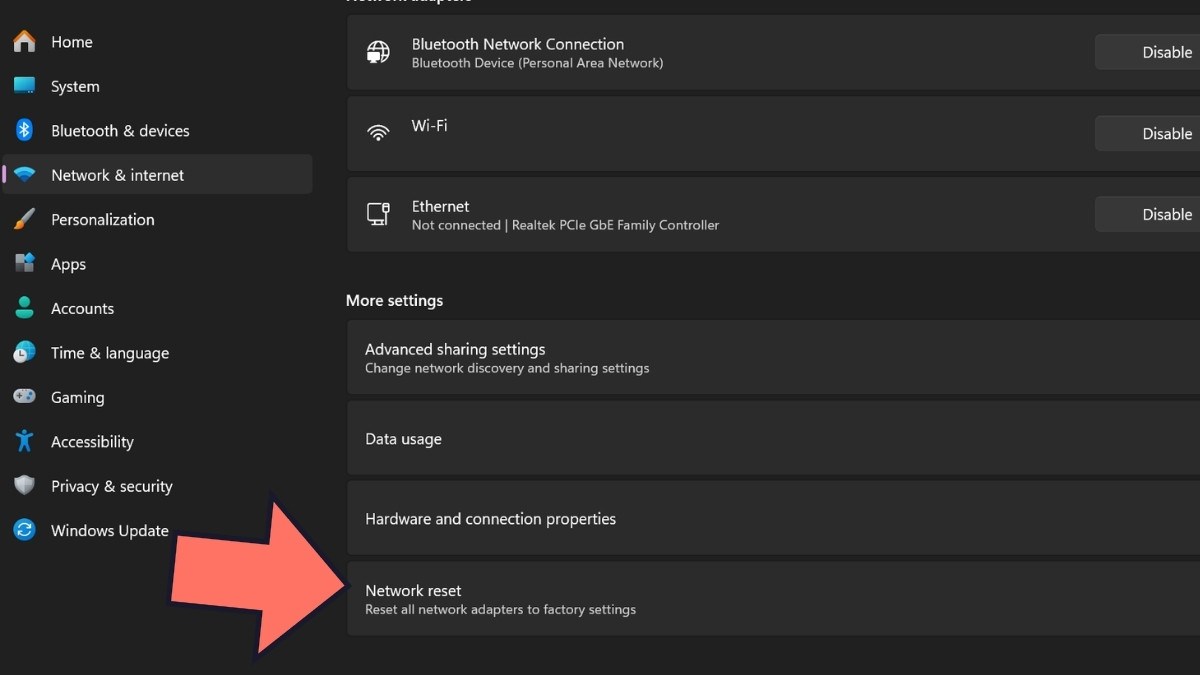
Open Settings -> Network & Internet -> Advanced Network Settings -> Network Reset -> Reset Now. This removes and reinstalls all network adapters and resets their settings. You will need to reconnect to Wi-Fi afterward. Restart your PC, reconnect, and test the game.
WARNING: This is the most difficult and disruptive fix on the list. Only use it if every other step has already failed.
Frequently Asked Questions (FAQs)
The most common cause is a lobby that has been running for several hours. The session's network synchronization degrades over time. Leave the current lobby entirely and have someone create a fresh one. Joining the new session resolves the black screen in most cases.
This error appears in the Steam Overlay when Steam's networking layer is not connected. Open the Steam Overlay with Shift + Tab while the game is running to check. If you see this message, fully restart Steam and confirm you are not offline before relaunching the game.
As of the current version, no dedicated patch has been released for all variants of the connection error. Dazed Games released patch 1.0.4 addressing some multiplayer issues, but some of you can still encounter the problem. If none of the fixes above work, post your game version, region, whether solo play launches, and the exact behavior after clicking Create Session in the game's Steam community discussions for the developers to investigate.
For more on How To Fish, check out How to Farm Money in How To Fish or Top 5 Mods for How to Fish [Steam PC] on Pro Game Guides!


