




The camera is set to a first-person POV by default when you drop into Hytale for the first time. While it’s good for seasoned gamers, players who enjoy the third-person point of view might struggle. That’s why we’ve put together this step-by-step guide that will help you switch to third person in Hytale. So, let’s get going!
How to Switch My Camera To Third Person In Hytale
Switching to third-person in Hytale is as easy as pressing a button on your keyboard. Just press ‘V,’ and your POV will switch from first-person to third-person, and vice versa. You can also set your preferred camera POV as the default. To do that, you need to tinker with a few settings. It’s nothing too complicated, luckily. Just follow the steps listed below:
- From the main screen, go to the Settings menu. You can also access it from in-game by pausing the game.
- In Settings, go to the Gameplay tab.
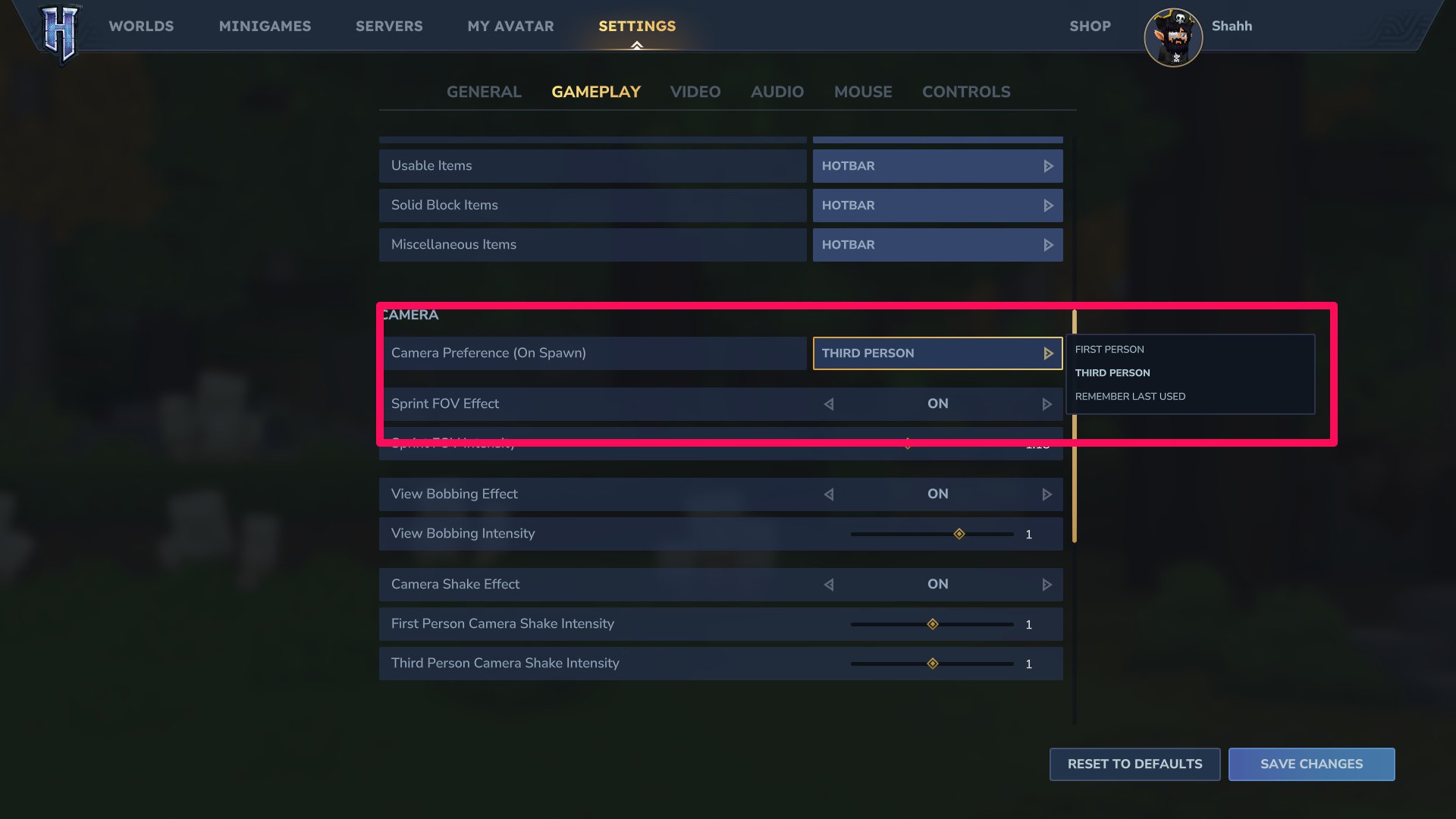
- Scroll down to the Camera section and click on the Camera Preference (On Spawn) options.
- Set First Person, Third Person, or Remember Last Used as your camera POV preference.
Scroll down a little, and you’ll find settings for View Bobbin Effect and Camera Shake Effect. Turn both these off if you don’t like the camera shakes and bobbing. Players who suffer from motion sickness will enjoy a more stable viewing experience by switching to third-person and turning off camera bobbing and shaking.
First Person Vs Third Person - Best POV for Hytale?
The best camera POV for Hytale depends on your gameplay style. If you plan to explore Orbis, mine for ores, and farm chests, the third-person camera and its extended field of vision are extremely helpful. It’ll also help you see any aggressive NPCs and mobs nearby, and you can decide to fight or walk away well before they aggro you.
On the other hand, the first-person camera is better suited for creative mode. You get a better view and can place blocks more freely as opposed to constantly having to move around when creating in third-person.
Similarly, in 1v1 combat, first-person offers a slight advantage as it allows better aim, and you can react to enemy attacks more quickly. That said, if you are fighting multiple enemies and get surrounded, you should switch to third-person so you can keep track of all enemies.
How to Change Camera Shoulder in Hytale
If you want, you can also change the camera shoulder in Hytale. This is especially useful for players who use the third-person camera. Here’s how you can change your camera shoulder:
- Go to Settings.
- Go to General.
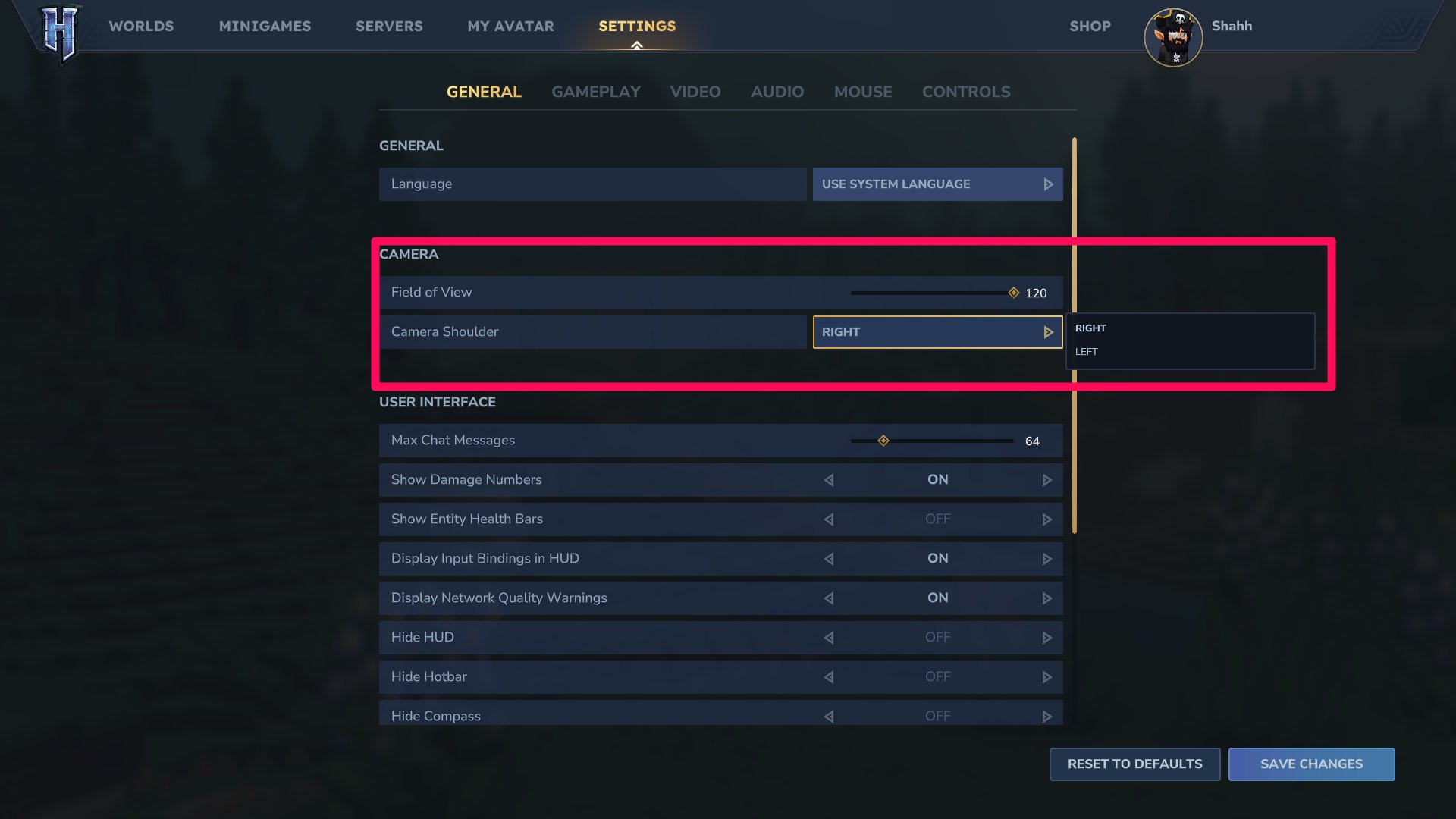
- Find the Camera section and look for the Camera Shoulder option.
- Choose your preferred camera shoulder between Right and Left.
How to Change Field of View in Hytale
If you’d like to see more (or less) of your surroundings, you can increase or decrease your field of view in Hytale. To do that, you’ll have to use the Field of View slider.
Go to Settings > General, and just above the Camera Shoulder option, you’ll see the Field of View slider. If you’d like to increase or decrease your field of vision, this is the setting to tinker with.
The default Field of View is 75, but you can adjust it to 30 (not recommended) or increase it to 120 if you want to be more aware of your surroundings.
Hytale FAQs
If you don’t want to see the blurry sprint effect, you can turn it off by going to the following path: Settings > Gameplay > Sprint FOV Effect > OFF.
Camera Shake in Hytale provides an extra level of immersion, but it can also trigger motion sickness. To turn it off, go to Settings > Gameplay > Camera Shake Effect > OFF. If you don’t want to turn it off completely, use the First or Third Person Camera Shake Intensity to decrease the effect’s visual impact.
You can change the third-person camera distance in Hytale by changing your Field of View. Go to Settings > General > Field of View and use the slider to increase or decrease camera distance in third-person.
You should also check out our detailed Hytale Controls Guide & All Keybind Settings, and also go through our Complete Hytale Beginner's Guide to get started.
 Shah is a Roblox specialist with years of experience covering the platform’s biggest games, updates, and code drops for top-tier gaming sites. Formerly an accountant, he now applies the same precision to analyzing mechanics, meta shifts, and game trends across the Roblox universe. He’s especially known for breaking down Blox Fruits treasure hunts and mastering the grind in Grow a Garden.