

TLDR:
- Kabuki’s core PC combat controls are M1 for Light Attack, R for Heavy Attack, Q to Dodge, and F to Block. Keybinds cannot be customized.
- Press T to toggle fists up before a fight, G to switch fighting styles, and H to open the Character Menu and code redemption field.
- On Xbox and PS5, RT/R2 is Light Attack, RB/R1 is Heavy Attack, LT/L2 is Block, and B/Circle is Dodge. Shift Lock is R3 on both controllers.
Kabuki is a Roblox street roleplay experience set in a reimagined 1988 Kabukicho, where you can explore clubs, eat ramen, fight other players, and unlock unique fighting styles. But, controlling your character and fighting against others can be quite difficult if you don't know the right keybinds. So, if any of the controls are tripping you up mid-fight, here is everything you need to know.
All Controls in Roblox Kabuki
From chaining combos in a street fight to even browsing the character menu, knowing your keybinds is essential. We have listed all confirmed PC and controller controls below.
Kabuki PC Controls
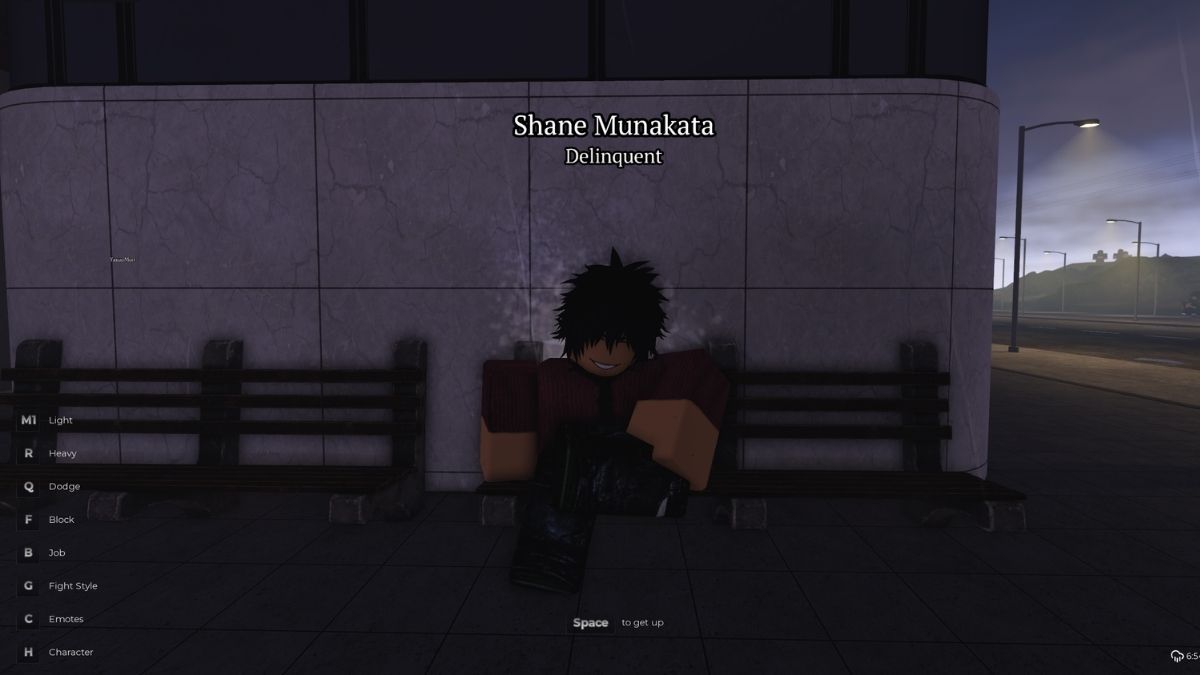
Here are the default Kabuki controls for PC. Note that keybinds cannot currently be customized. There is no rebinding option available at this time.
| Action | Keybind |
|---|---|
| Light Attack | M1 (Left Click) |
| Heavy Attack | R |
| Dodge | Q |
| Block | F |
| Jump / Get Up | Space |
| Fists Up / Fists Down | T |
| Fight Styles | G |
| Job | B |
| Emote | C |
| Character Menu | H |
Here are some quick tips for making the most of Kabuki’s PC controls:
- Tap Q to dodge incoming attacks. Timing your dodge is the most important defensive skill in street fights.
- Use G to open your Fight Style menu and switch between unlocked styles depending on the situation.
- Press T to toggle your fists up before a fight, else you won't be able to attack.
- Use F to block heavy incoming attacks and reduce damage taken while you wait for an opening.
- Press H to open the Character Menu, which also gives you access to code redemption.
Kabuki PS5 and Xbox Controls
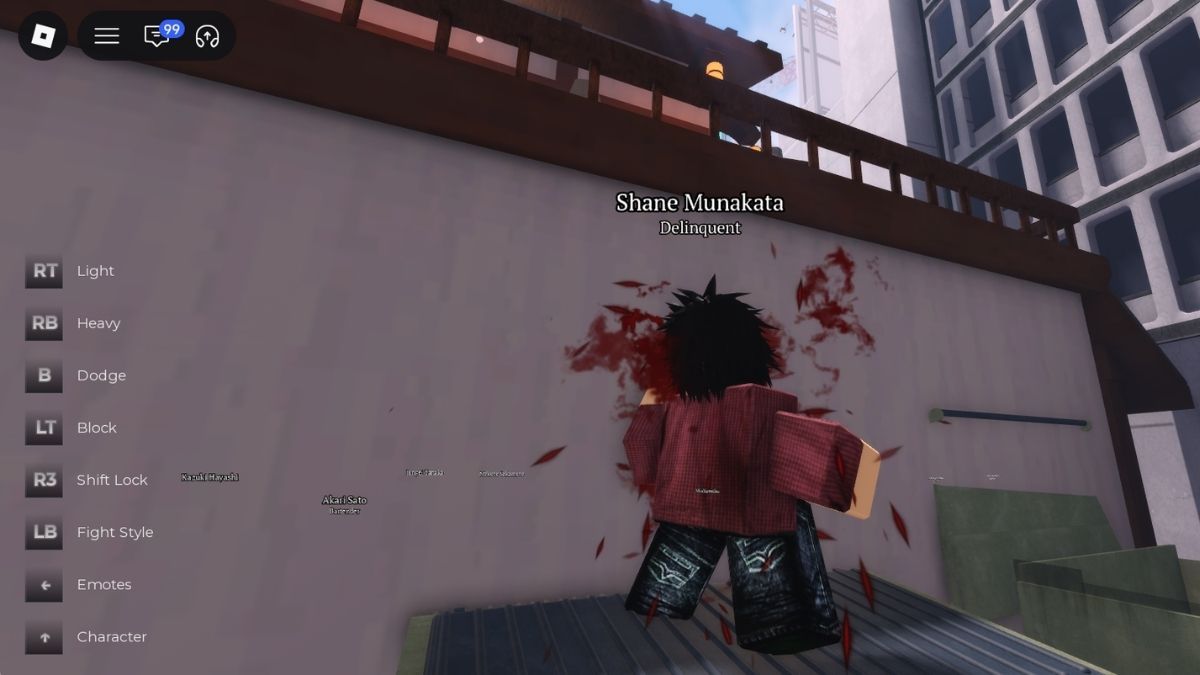
If you prefer playing with a controller, here are the confirmed Kabuki controls for Xbox and their PS5 equivalents.
| Action | Xbox | PS5 |
|---|---|---|
| Light Attack | RT | R2 |
| Heavy Attack | RB | R1 |
| Block | LT | L2 |
| Dodge | B | Circle |
| Fight Style | LB | L1 |
| Fists Up / Fists Down | Y | Triangle |
| Emote | D-Pad Left | D-Pad Left |
| Character Menu | D-Pad Up | D-Pad Up |
| Shift Lock | R3 | R3 |
How to Shift Lock in Kabuki
Shift Lock keeps your camera locked behind your character, making directional combat and dodging significantly easier to manage in tight fights.
- PC: Control/Ctrl (standard Roblox Shift Lock. Toggle in Roblox settings)
- Xbox: R3 (click the right thumbstick)
- PS5: R3 (click the right thumbstick)
How to Change Controls in Kabuki
Unlike some Roblox combat games, Kabuki does not currently support keybind customization. All controls are fixed to the defaults listed above and cannot be remapped through any in-game menu. If you are playing on controller, the Shift Lock function is always bound to R3 regardless of your input device.
Frequently Asked Questions (FAQs)
Pressing H opens your character menu, which gives you access to avatar customization options and the code redemption field. It is one of the most frequently used non-combat keybinds in the game.
No. Keybind customization is not available in Kabuki at this time. All PC and controller bindings are fixed to the defaults listed in this guide.
Press G on PC or LB / L1 on controller to open the Fight Style menu and swap between whichever styles you have unlocked. Kabuki has seven unique fighting styles available through the in-game gacha system, with Muay Thai currently considered the strongest option.
For more on Kabuki Roblox, check out Kabuki Codes or Kabuki Fighting Style Tier List – Roblox on Pro Game Guides!


