


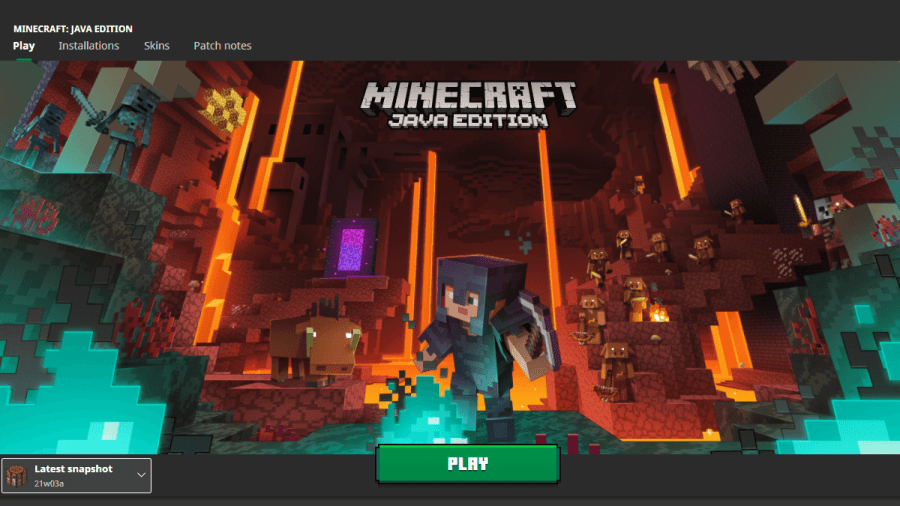
Want to try upcoming Minecraft features before the full update comes out? To play a Minecraft snapshot, open the Minecraft Launcher, select Minecraft: Java Edition, and check Snapshots under Installations. Then return to the Play tab, choose Latest Snapshot from the version menu, and click Play. Start with a new test world or a copy of an existing save, since snapshots can contain bugs that damage worlds.
How to Enable and Play Minecraft Snapshots
Snapshots are early versions of Minecraft Java Edition that Mojang releases so players can try changes while they're still in development. If you just want to see what's new, the Latest Snapshot option is the easiest way to get started. Here's where to find it.
Step One: Open Installations
Open the Minecraft Launcher and select Minecraft: Java Edition in the sidebar. Before you hit the green Play button, look for the Installations tab near the top. This is where you can see and manage the different versions of Java Edition you can launch.
Step Two: Enable Snapshots
In Installations, check the box next to Snapshots in the version filters. If you went straight to the version menu on the Play tab and couldn't find a snapshot, come back here and make sure this box is checked.
Step Three: Select Latest Snapshot and Play
Return to the Play tab and open the version menu next to the green button. Select Latest Snapshot, then click Play. Once Minecraft opens, create a fresh test world so you can try the new features without touching your regular saves.
How to Play a Specific Minecraft Snapshot
Following a guide written for a particular snapshot? Create a separate installation and select that exact build from the version list. That way, your installation stays on the build you chose when a newer snapshot comes out.
- With Snapshots enabled, open Installations and click New installation.
- Give the installation a name you can recognize later. Using the snapshot's version in the name makes it easier to find in the Play menu.
- Open the Version menu and select the specific snapshot you want to play.
- Under Game Directory, choose a separate folder if you want to keep this installation's worlds apart from your regular saves.
- Click Create, return to the Play tab, and select the installation you just made. Check its name before clicking Play.
Can You Play a Snapshot With an Existing World?
Yes, but make a backup first and open a copy of the world in the snapshot. Mojang warns that test builds can corrupt worlds and recommends backing up your saves or running snapshots in a separate folder. If you're just curious about a new feature, creating a fresh world is the simplest option. If you want to see how a change affects your favorite world, use a copy and keep the original for the regular release.
Where to Find Minecraft Snapshot Patch Notes
You can see what's new before you launch the game. In the Minecraft Launcher, select Minecraft: Java Edition, open Patch Notes, and check Snapshots to filter the list. Open the notes for the build you plan to play to see which features changed and which bugs were fixed.
You can also browse Mojang's Snapshot Information and Changelogs in your browser. That's handy if you're looking up an older build or checking whether a feature is included in the snapshot you want to try.
Can You Play Minecraft Snapshots on Bedrock Edition?
Snapshots are for Minecraft: Java Edition. If you play Bedrock Edition, look for Minecraft Preview or Beta, depending on your device. That's how Bedrock players can try features that are still in development.
How to Switch Back to the Latest Minecraft Release
When you're done testing, close Minecraft and return to the Launcher's Play tab. Open the same version menu and choose Latest Release, or select the regular installation you normally use. If you tested a copy of an existing world, go back to the original save. Opening a world saved in a newer snapshot with an older version can damage it.
Related: How to Install Minecraft Modpacks


